Multi-factor authentication (MFA) adds a second layer of security to your Microsoft 365 account. Even if someone obtains your password, they cannot access your account without also having your phone.
Setting up the Microsoft Authenticator app takes about 5 minutes.
What you need
Your work computer or laptop (signed in to your Microsoft 365 account)
Your smartphone (Android or iPhone)
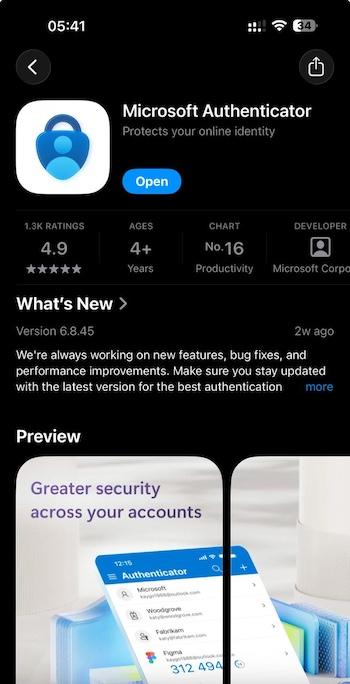
Step 1 — Install the app on your phone
On your smartphone, open the App Store (iPhone) or Google Play Store (Android) and search for Microsoft Authenticator. Install the app published by Microsoft Corporation.
Step 2 — Start the setup on your computer
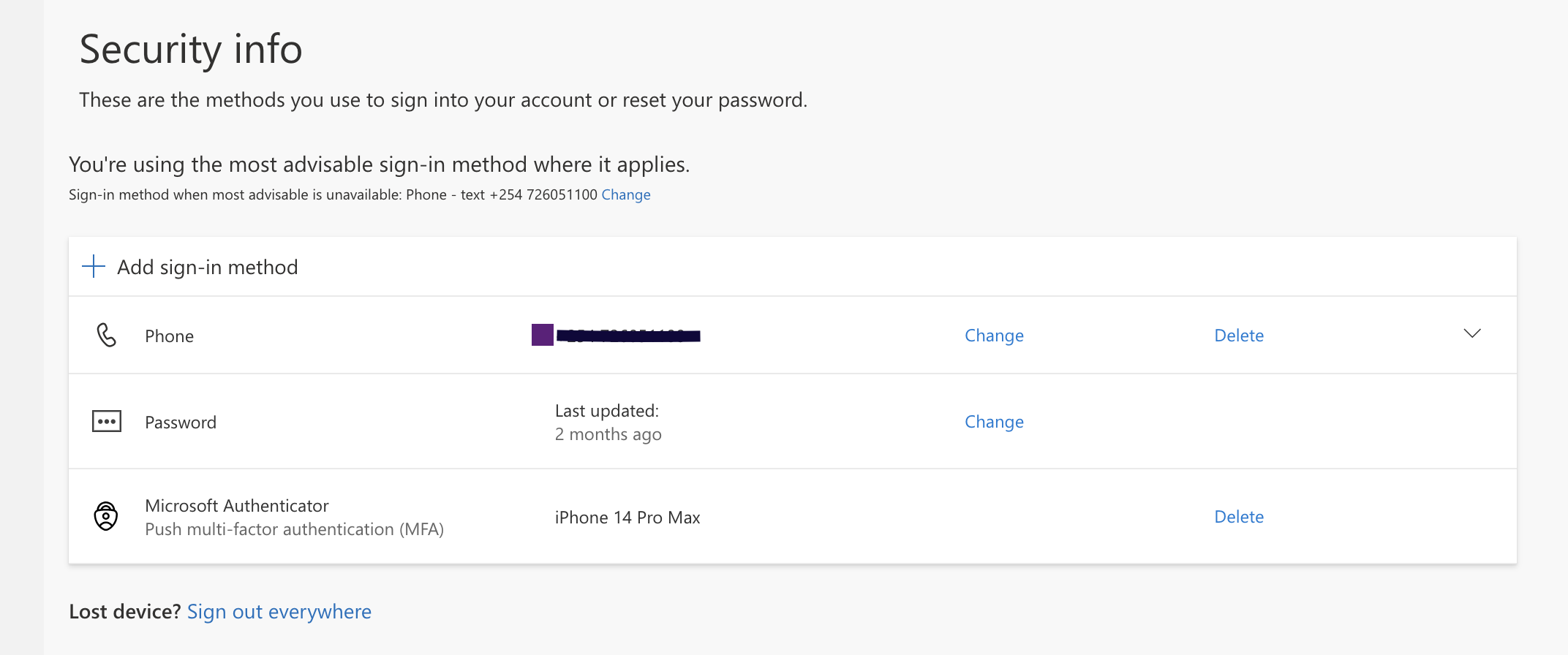
On your computer, go to: https://aka.ms/mfasetup
Sign in with your work email address and password. You will be prompted to set up additional security verification.
Step 3 — Add your work account to the app
On your computer, select Mobile app as your verification method, then click Set up.
A QR code will appear on screen.
Open the Microsoft Authenticator app on your phone, tap the + button, select Work or school account, then tap Scan QR code.
Point your phone camera at the QR code on your computer screen.
Step 4 — Test it
Your computer will send a test notification to your phone. Tap Approve in the Authenticator app to confirm the setup is working.
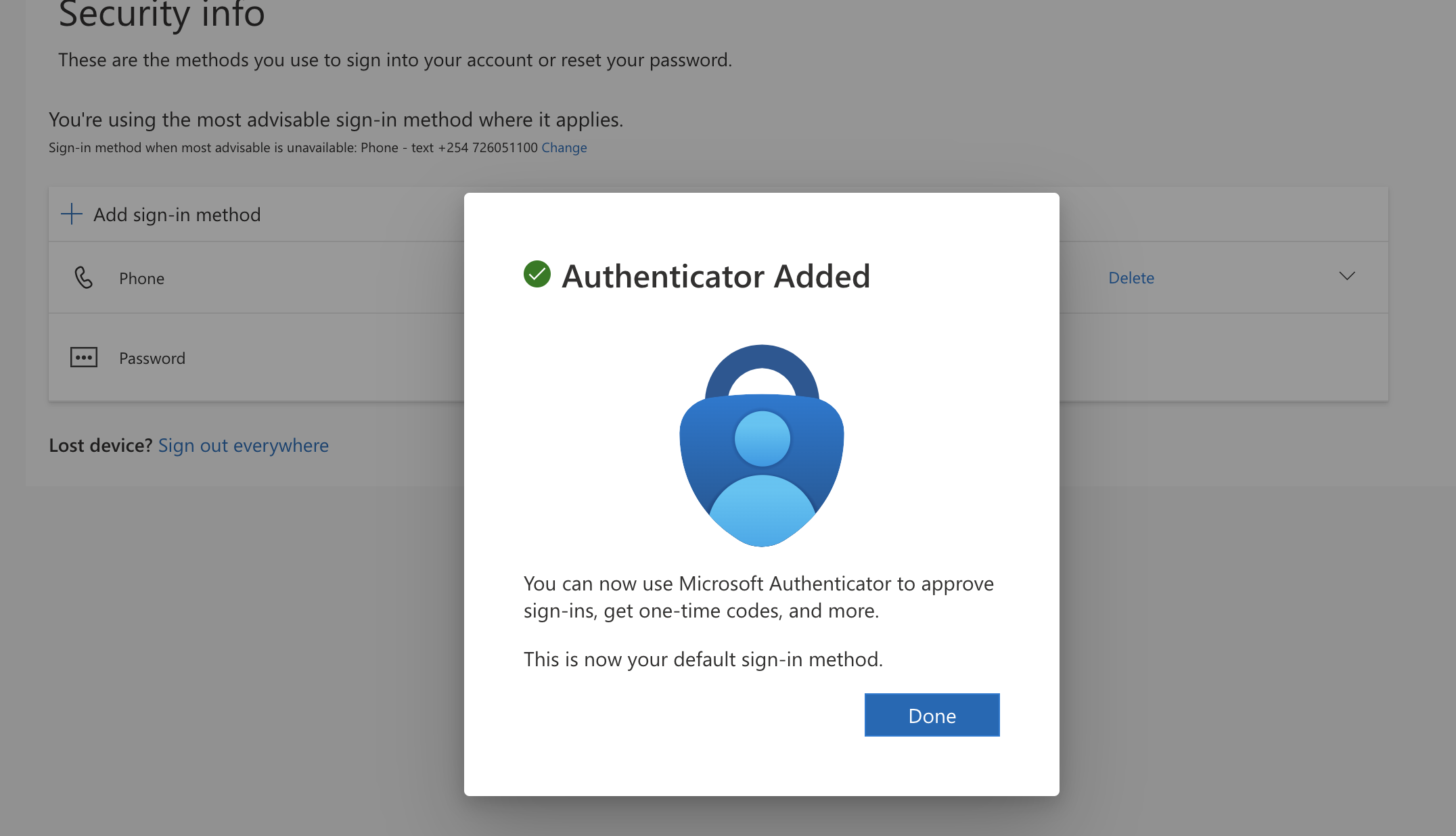
From now on, when you sign in to Microsoft 365, you will receive a prompt on your phone to approve the login. Tap Approve to complete the sign-in.
If you get a new phone
You will need to re-register the app. Submit a ticket to support@sentire.co.ke and an engineer will assist you.
Still need help?